Invokyr Controller Support & Input Overview
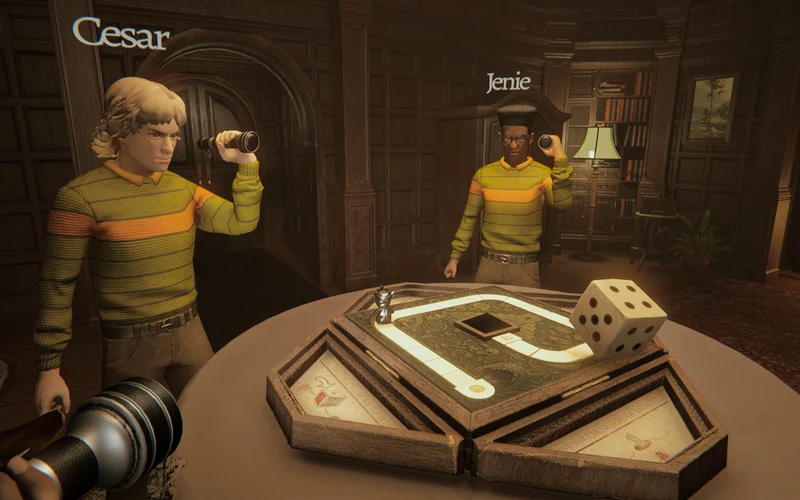
Surviving the cursed corridors of Invokyr demands split-second decision-making, whether evading lethal entities or sprinting back to the central parlor table. Understanding controller compatibility, button layouts, and custom binding options ensures fluid movement and squad coordination.
| Controller / Input Hardware | Compatibility Status | Default Profile Configuration | Recommended Adjustment |
|---|---|---|---|
| Keyboard & Mouse | Native Plug & Play | Standard WASD + Mouse Look | Rebind Sprint to Shift toggle |
| **Xbox Wireless / Series X | S** | Native via Steam Input | Standard XInput Gamepad |
| PlayStation DualSense / DualShock | Fully Supported via Steam Input | PlayStation Button Glyphs | Enable Gyro Aim if preferred |
| PC Handhelds & Generic Gamepads | Supported via Steam Input | Default Gamepad with Joystick Trackpad | Map Quick-Slot items to Back Grips |
Whether exploring the Haunted Manor or fleeing the Icy Mountain Yeti, gamepad controls provide intuitive physical feedback during intense board game tabletop sessions. If you are experiencing squad communication hurdles or push-to-talk failures, see our dedicated Invokyr Mic Not Working & Voice Chat Fixes Guide.
Recommended Gamepad Button Layout
While individual button mapping can be customized through the in-game settings menu and Steam Input overlay, the standard verified layout operates as follows:
┌────────────────────────────────────────────────────────┐
│               INVOKYR GAMEPAD SCHEME                   │
├──────────────────────────┬─────────────────────────────┤
│ Left Joystick            │ Character Movement (WASD)   │
│ Left Stick Click (L3)    │ Toggle Sprint               │
│ Right Joystick           │ Camera Look & Aim           │
│ Right Stick Click (R3)   │ Flashlight / Lantern Toggle │
│ Right Trigger (RT / R2)  │ Throw Dice / Primary Action │
│ Left Trigger (LT / L2)   │ Aim Dice / Secondary Action │
│ Face Button Down (A / X) │ Interact / Pick Up Dice     │
│ Face Button Left (X / □) │ Reload / Use Gadget         │
│ Face Button Top (Y / △)  │ Inventory / Ledger Toggle   │
│ D-Pad Up / Down          │ Cycle Equipped Dice Slots   │
│ View / Select Button     │ Scoreboard & Squad Status   │
│ Menu / Start Button      │ Pause & Settings Menu       │
└──────────────────────────┴─────────────────────────────┘
All input configuration references and peripheral compatibility notes are indexed on the Invokyr Wiki hub.
How to Configure Custom Keybindings via Steam Input
If default sensitivity or button placement feels awkward during exploration runs, players can configure granular profiles via Steam:
- Launch Steam and navigate to Invokyr in your library.
- Connect your controller (USB cable or Bluetooth pairing).
- Select the Controller Configuration icon located on the right side of the game banner.
- Choose Enable Steam Input to access community layouts and granular deadzone sliders.
- Remap critical actions (such as dice throwing and sprint stamina preservation) to the rear paddle buttons for uninterrupted thumbstick camera control.
Accessibility Options: Arachnophobia Mode & Camera Shake Settings
Player feedback from the community and official developer announcements confirm dedicated accessibility toggles designed to customize sensory comfort without altering game difficulty or survival stakes:
| Accessibility Parameter | In-Game Location | Toggle Options | Effect on Gameplay & Entities |
|---|---|---|---|
| Arachnophobia Option | Settings → Accessibility / Gameplay | Enabled / Disabled (Default: Off) | Replaces or softens arachnid creature visuals and crawling silhouettes |
| Camera Shake Option | Settings → Video / Accessibility | Enabled / Disabled (Default: On) | Disables rapid screen trauma during monster stomps and board slams |
| Field of View (FOV) | Settings → Video | Adjustable Slider | Expands peripheral hallway awareness to reduce motion sickness |
| Key Binding Customization | Settings → Controls | Rebindable Keyboard & Mouse | Allows full per-action keyboard mapping |
How to Enable Arachnophobia Mode
- From the main menu or in-game pause screen, open Settings.
- Navigate to the Accessibility (or Gameplay) tab.
- Locate Arachnophobia Option and toggle it to Enabled.
- Apply changes before initiating your next tabletop board expedition.
These options ensure operatives sensitive to phobia triggers or aggressive head bobbing can navigate the Haunted Manor and Yeti Board comfortably while retaining authentic cooperative tension.
Official Patch V0.44.7, V0.44.9 & V0.44.10 Controller & UI Updates
Recent patches brought direct improvements to gamepads and HUD readability:
- Controller Menu Scrolling Fix (Patch V0.44.10): Resolved UI focus and scrolling bugs when navigating settings, shop catalogs, and lobby lists with a gamepad, alongside fixing subtitle-related dialogue stalls.
- Action Tooltip Button Icons (Patch V0.44.7): Developers added controller button icons to action tooltips, allowing gamepad users to see contextual button prompts (e.g., A/X to pick up, RT/R2 to roll) dynamically on screen.
- Improved Gamepad Support (Patch V0.44.9): Steam input handling, analog stick deadzones, and menu navigation sensitivity received official enhancements for Xbox, DualSense, and Steam Deck controllers.
- New Subtitles Options (Patch V0.44.9): Added customizable subtitle toggles and display settings to enhance audio accessibility during high-intensity monster hunts.
Frequently Asked Questions
Does Invokyr feature an Arachnophobia mode?
Yes. Official developer updates introduced a dedicated Arachnophobia Option within the settings menu, allowing players to filter spider visuals and web encounter triggers.
Can you turn off screen shake in Invokyr?
Yes. The Camera Shake Option in the video/accessibility settings can be toggled off to eliminate violent screen tremors during entity manifestations and monster stomps.
Does Invokyr support full controller vibration and haptics?
Basic rumble feedback is enabled during dice rolls, board game monster summons, and physical entity attacks. Advanced DualSense adaptive triggers remain under developer evaluation.
Can I rebind keyboard controls in-game?
Yes. Official developer patch notes confirm dedicated in-game key binding options that allow players to customize all keyboard and mouse inputs without third-party tools.
What should I do if my controller is not detected?
Ensure Steam Input is enabled under the game’s Steam Properties menu. If running third-party software like DS4Windows, disable virtual device conflicts to allow native Steam driver detection.