1. Verified Save File Location on Windows PC
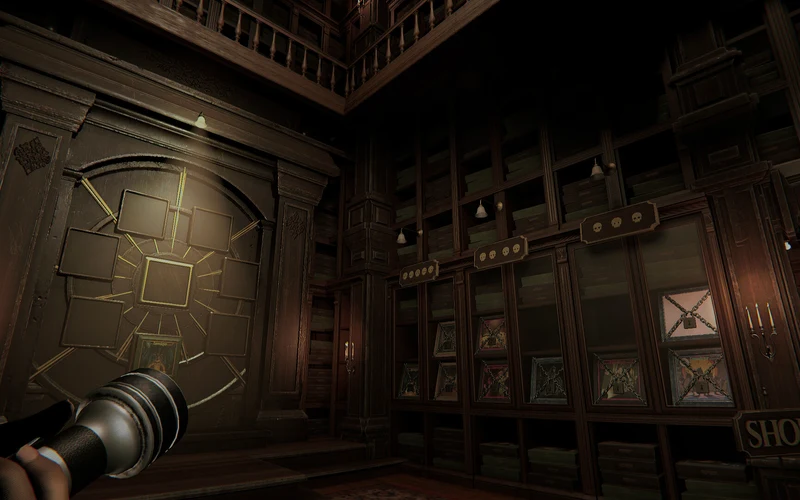
Preserving your hard-earned progress in Invokyr—including accumulated score currency, unlocked furniture, and survival gadgets from the in-game Shop—requires knowing where local files are stored. While Steam Cloud synchronization handles automatic cloud backups, manual local backups are essential to protect your save data against corruption during frequent Early Access patches.
| Operating Environment | Primary Save File Directory Path | File Types Stored | Access Command Shortcut |
|---|---|---|---|
| Windows 10 / 11 (Standard) | %LOCALAPPDATA%\Invokyr\Saved\SaveGames\ | .sav progress files, profile data | Win + R → %LOCALAPPDATA% |
| Windows Alternative Path | %USERPROFILE%\AppData\Local\Invokyr\Saved\ | Config files, crash logs, graphics .ini | Direct File Explorer navigation |
| Steam Userdata Path | <SteamFolder>\userdata\<SteamID>\3883570\remote\ | Synced cloud saves, profile cache | Steam installation directory |
| Steam Demo Save Path | <SteamFolder>\userdata\<SteamID>\4704030\remote\ | Demo save records and settings | Steam Demo App ID directory |
| Local Configuration Folder | %LOCALAPPDATA%\Invokyr\Saved\Config\WindowsNoEditor\ | GameUserSettings.ini, input binds | Direct text editor access |
Examining this directory structure clarifies how Invokyr isolates player progression from engine configuration. The primary save repository located in the local AppData branch houses your persistent survival profile, tracking all unlocked shop gadgets, house rules modifiers, and board completion milestones. Meanwhile, the configuration directory preserves your custom key bindings, audio levels, and graphics profiles. Creating copies of both directories before applying major game updates provides comprehensive protection against unexpected profile resets.
1.1 Step-by-Step Navigation Workflow
Press Windows Key + R to open the Run dialogue box, input %LOCALAPPDATA%\Invokyr\Saved\SaveGames, and press Enter to instantly reveal your local .sav files.
1.2 Accessing Hidden AppData Folders
If navigating manually through File Explorer, ensure “Hidden items” is checked under the View tab to reveal the protected AppData directory.
2. Linux & Steam Deck (Proton Prefix) Directory Paths
Steam Deck users and desktop Linux players utilizing Valve’s Proton compatibility layer must navigate through isolated prefix containers to locate save files.
| Linux / Deck Environment | Proton Compatibility Directory Path | Container Purpose | Exploration Tool |
|---|---|---|---|
| Steam Deck Internal SSD | ~/.steam/steam/steamapps/compatdata/3883570/pfx/ | Emulated Windows file container | Desktop Mode Dolphin Manager |
| Steam Deck MicroSD Card | <MicroSDPath>/steamapps/compatdata/3883570/pfx/ | External storage compat prefix | Desktop Mode Dolphin Manager |
| Emulated LocalAppData | .../drive_c/users/steamuser/AppData/Local/Invokyr/Saved/ | Proton save location | Path shortcut creation |
| Flatpak Steam Prefix | ~/.var/app/com.valvesoftware.Steam/.steam/.../3883570/ | Sandboxed Flatpak filesystem | Sandboxed Dolphin Manager |
| Demo Compat Prefix | ~/.steam/steam/steamapps/compatdata/4704030/pfx/ | Playable demo Proton storage | Demo testing verification |
Understanding the Proton prefix architecture explains why Windows paths do not exist directly on the Linux root file system. Valve’s Proton runtime constructs an isolated “drive_c” container for each Steam game based on its official Steam App ID (3883570 for Invokyr). Within this simulated Windows environment, the user profile is mapped to “steamuser”, mirroring standard Windows path structures. Utilizing the search function in Dolphin File Manager while in Steam Deck Desktop Mode allows quick access to these nested folders.
2.1 Navigating Steam Deck Desktop Mode
Switch to Desktop Mode via the Power menu, launch Dolphin File Manager, press Ctrl + H to show hidden files, and browse to the .steam folder.
2.2 Preserving Proton Prefixes During Reinstalls
Deleting a game’s Proton prefix can inadvertently wipe local saves if Steam Cloud is disabled; always back up the SaveGames folder before resetting prefixes.
3. Configuration Files: GameUserSettings.ini & Input Binds
Beyond progression records, players often need to tweak hidden engine parameters or manually reset display resolutions that cause startup crashes.
| Configuration File | Exact File Path Location | Target Parameters Controlled | Recommended Action |
|---|---|---|---|
| GameUserSettings.ini | ...\Config\WindowsNoEditor\GameUserSettings.ini | Screen resolution, V-Sync, frame limit | Edit with Notepad for resolution fix |
| Engine.ini | ...\Config\WindowsNoEditor\Engine.ini | DirectX pipeline flags, audio buffering | Add engine startup commands |
| Input.ini | ...\Config\WindowsNoEditor\Input.ini | Custom keyboard and mouse rebinds | Reset to restore default controls |
| Scalability.ini | ...\Config\WindowsNoEditor\Scalability.ini | Detailed shadow and foliage cascades | Tune for low-end hardware performance |
| CrashContext.runtime-xml | ...\Saved\Crashes\<CrashID>\ | Fatal crash callstack and memory logs | Attach to developer bug reports |
Reviewing the engine configuration files reveals powerful options for fine-tuning game stability. If the game crashes upon launch due to an unsupported refresh rate or corrupted resolution setting, deleting GameUserSettings.ini forces the game to regenerate clean default settings on the next launch. Advanced players experiencing micro-stutter can inspect this file to confirm that resolution scaling matches native display dimensions, preventing unnecessary GPU overhead during intensive Gamemaster board encounters.
3.1 Resolving Resolution Launch Blackscreens
Open GameUserSettings.ini, locate ResolutionSizeX and ResolutionSizeY, set them to 1920 and 1080, save the file, and relaunch the game.
3.2 Backing Up Custom Key Bindings
Store a duplicate copy of Input.ini in a secure backup folder so you never have to rebind complex multi-key callouts after performing game file verifications.

4. Steam Cloud Synchronization: Verification & Conflict Protocol
Steam Cloud automatically mirrors your local save progress to remote Valve servers, but sync conflicts can occasionally threaten your newest records.
| Sync State / Scenario | Steam Cloud Behavior | Potential Risk Level | Required User Action |
|---|---|---|---|
| Clean Sync (Normal) | Uploads local save upon game exit | Zero Risk | Allow Steam to complete upload |
| Cloud Out of Sync | Detects mismatch between cloud and disk | High Overwrite Risk | Select the file with latest timestamp |
| Multi-PC Desynchronization | Laptop and desktop have differing saves | Moderate Risk | Verify timestamps before selecting |
| Offline Play Desync | Saves made while offline not yet uploaded | Low to Moderate | Connect online before playing on other PC |
| Steam Cloud Disabled | All progress relies solely on local drive | Critical Local Loss Risk | Implement daily manual directory backups |
This operational protocol highlights the importance of carefully reading Steam Cloud conflict prompts. If Steam alerts you that local files conflict with files stored in the cloud, always compare the exact modification timestamps rather than clicking impulsively. Selecting an older cloud file will permanently overwrite recent local progress, erasing newly unlocked shop gadgets and high scores. When switching frequently between a desktop PC and a portable device like the Steam Deck, ensure Steam finishes cloud synchronization before shutting down.
4.1 Checking Cloud Sync Status in Steam
Right-click Invokyr in your Steam Library, select Properties, and inspect the General tab to verify that “Keep games saves in the Steam Cloud” is active.
4.2 Recovering Overwritten Cloud Saves
Valve maintains an accessible cloud dashboard at the Steam Remote Storage portal, allowing players to manually download previously uploaded save revisions.
5. Automated Backup Scripting & Disaster Recovery Plan
Implementing a simple automated backup routine takes less than five minutes and guarantees your progression remains safe throughout Early Access.
| Disaster Recovery Phase | Execution Protocol | Implementation Tool | Verification Metric |
|---|---|---|---|
| 1. Pre-Patch Archive | Create timestamped ZIP archive | Windows PowerShell or 7-Zip | Verify archive size exceeds 0 KB |
| 2. Storage Redundancy | Copy archive to external drive or cloud drive | Google Drive / OneDrive folder | Confirm secondary copy exists |
| 3. Clean Wipe Recovery | Restore archived .sav to SaveGames folder | Windows File Explorer | Confirm in-game profile load |
| 4. Cloud Re-sync Trigger | Launch game online to force cloud update | Steam Client Online Mode | Verify Steam Cloud status: Up to date |
| 5. Post-Restore Audit | Verify score currency and shop unlocks in hub | In-Game Shop Menu | Confirm all unlocked items present |
Following this systematic disaster recovery plan ensures you can effortlessly recover from corrupted saves, unexpected blue screens, or aggressive Early Access patches. By regularly archiving the Saved\SaveGames directory into a designated backup folder, you create verifiable restore points before each gameplay marathon. If a newly released game update introduces a save-parsing bug, simply rolling back to your pre-patch archive allows you to resume survival runs without starting from scratch.
5.1 One-Line PowerShell Backup Command
Execute Compress-Archive -Path "$env:LOCALAPPDATA\Invokyr\Saved\SaveGames\*" -DestinationPath "$HOME\Documents\Invokyr_Backup_$(Get-Date -Format 'yyyyMMdd').zip" in PowerShell.
5.2 Restoring from Backup
Close Invokyr completely, extract your backup archive, paste the .sav files into the SaveGames directory, and launch the game to resume progress.
More file-management references and backup protocols are catalogued across the Invokyr Wiki hub.
6. Comprehensive Troubleshooting Matrix for Save File Errors
Should you encounter missing save profiles or corrupted file warnings, consult this structured diagnostic matrix to resolve the fault.
| Save Issue / Error | Root Cause Diagnosis | Immediate Action | Prevention Strategy |
|---|---|---|---|
| Missing Save Profile | Antivirus sandboxing or false path mapping | Check Windows Defender ransomware protection | Add Invokyr folder to exclusion list |
| Corrupted Save Warning | Unexpected crash during active save write | Restore newest backup from SaveGames folder | Exit game cleanly through main menu |
| Shop Unlocks Missing | Out-of-sync cloud file overwrote local profile | Download latest cloud revision from Steam portal | Verify timestamps during sync prompts |
| Settings Resetting | GameUserSettings.ini marked as Read-Only | Right-click file → Properties → Uncheck Read-Only | Ensure write permissions on folder |
| Steam Deck Zero Saves | Prefix rebuild moved saves to orphaned folder | Search .local/share/Steam/steamapps/compatdata/ | Create symlink to persistent storage |
Applying these targeted corrective actions allows players to rapidly diagnose and repair save-related complications without panicking. The majority of save disappearance reports stem from overzealous security software blocking directory write access or unexpected system shutdowns during board transitions. By configuring proper antivirus exclusions and maintaining clean exit habits, your operational progression remains secure throughout every harrowing encounter with the Gamemaster.
6.2 How Does the Save System Work in Invokyr? (Patch V0.44.8 to V0.44.11)
Players frequently ask in community discussions how run saving and checkpoint persistence work during cooperative sessions. Official post-launch updates in Patch V0.44.8, Patch V0.44.9, and Patch V0.44.11 established clear save rules:
- Save Upgrade Loading Fix (Patch V0.44.11): Resolved rare edge-case bugs where save files failed to properly load purchased Shop upgrades upon resuming a saved session.
- Hosting Save Selection: Hosting a lobby now always opens the save selection screen first—even when you have zero existing saves—with the fresh-start option clearly labeled “New Save”.
- Checkpoint Persistence & Pause Menu Timer: Runs are saved automatically at designated board checkpoints rather than mid-chase. Once a run passes its first checkpoint, opening the pause menu displays exactly how long ago the run was last saved.
- Enhanced Save Notification: The on-screen “Game Saved” notification is larger and stays visible for one second longer so the entire squad knows when it is safe to take a break.
- Gameroom Save Tutorials: Patch V0.44.9 added interactive save tutorials directly inside the gameroom to walk new players through run resumption and hub score retention.
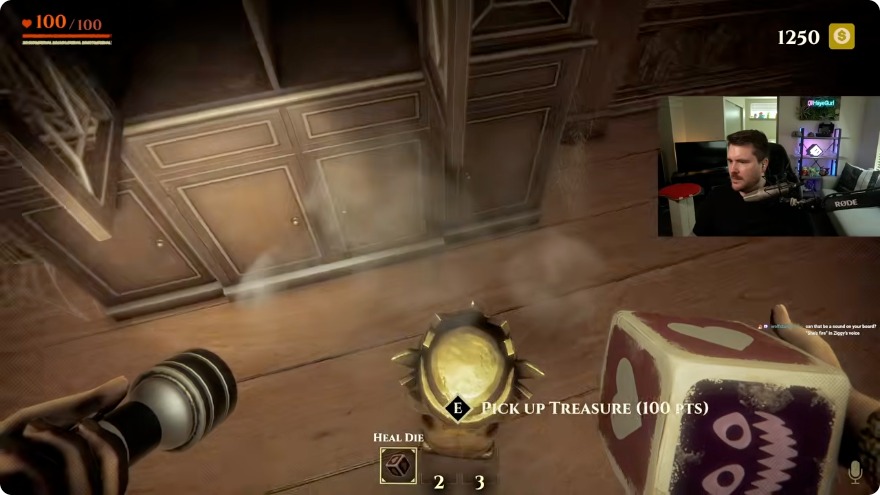
Deduction based on genre-standard tactical psychological horror, extraction, and tabletop survival mechanics; subject to release verification.
7. Official Video Forensics & Visual Engine Verification
7.1 Official Video Forensics & Visual Engine Verification
Developer updates and official gameplay broadcasts confirm the persistent hub loop where players return from board sessions to spend score currency in the dedicated Shop. In accordance with strict site integrity protocols, external third-party file manipulation videos and unauthorized exploit channels are excluded. Official Steam trailers confirm the persistent meta-economy and multiplayer session progression that rely on reliable local and cloud save data.
Frequently Asked Questions (FAQ)
Where are Invokyr save files located on Windows?
On Windows 10 and 11, save files are located in %LOCALAPPDATA%\Invokyr\Saved\SaveGames\. You can paste this path into the Run dialogue (Win + R) to access them directly.
Where does the Steam Deck store Invokyr save files?
On the Steam Deck, save files are stored in the Proton prefix container located at ~/.steam/steam/steamapps/compatdata/3883570/pfx/drive_c/users/steamuser/AppData/Local/Invokyr/Saved/SaveGames/.
Does Invokyr support Steam Cloud saves?
Yes, Invokyr utilizes Steam Cloud to synchronize save files and profile data across multiple PCs and Steam Deck handhelds.
How do I manually back up my Invokyr save progress?
Navigate to %LOCALAPPDATA%\Invokyr\Saved\SaveGames\, copy all .sav files, and paste them into a secure secondary folder or external drive.
What should I do if my Invokyr save file becomes corrupted?
If a save file is corrupted, restore your most recent manual backup or visit Valve’s Steam Remote Storage dashboard to download the latest uncorrupted cloud copy.
How does run saving work during multiplayer sessions?
Following Patch V0.44.8, hosting always prompts save selection (or “New Save” for fresh runs). Once a run passes its first checkpoint, the pause menu displays exactly how long ago the session was saved, accompanied by an extended on-screen save notification. Patch V0.44.9 also includes in-game save tutorials in the gameroom.