Invokyr Multiplayer Connection Issues: Overview
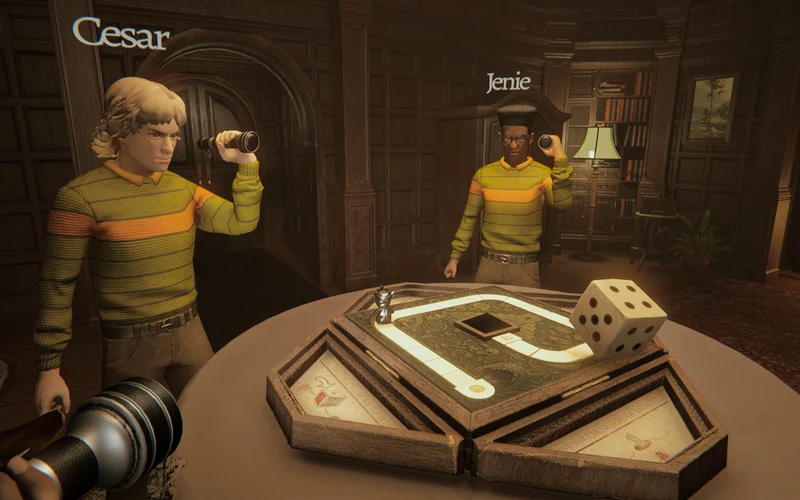
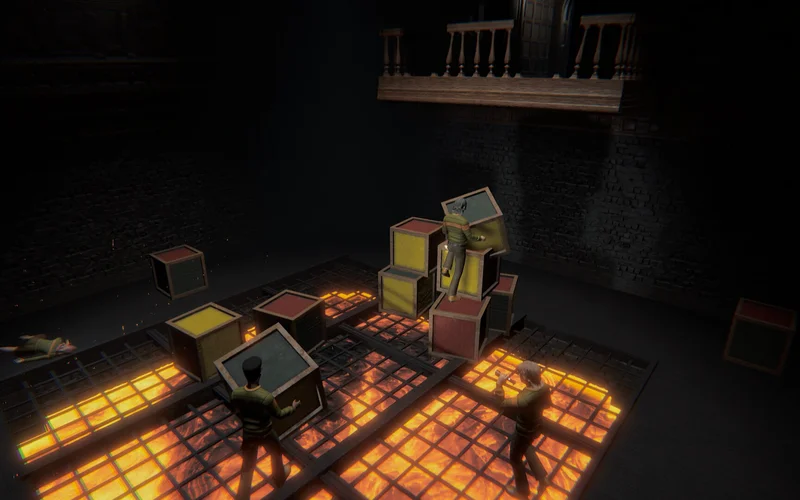
Cooperative teamwork is the core pillar of Invokyr. However, during demo playtests and launch preparation, players frequently encounter networking barriers such as “Connection Failed”, “Failed to Join Lobby”, or unexpected mid-game host desynchronizations.
| Error Message / Symptom | Primary Root Cause | Most Effective Solution |
|---|---|---|
| “Failed to Join Lobby (Timeout)” | Steam P2P Relay Desync between regions | Match Steam Client Download Regions |
| “Connection to Host Lost” | Outbound packet loss / High packet drop | Switch from Wi-Fi to wired Ethernet |
| “Room is Full” (in Demo) | Demo hard-coded 4-player cap | Wait for EA launch (6-player capacity) |
| “Lobby Not Found” via Invite | Steam Friends privacy mismatch | Set Steam profile & friends status to Public |
| Endless Loading / Black Screen | Windows Defender blocking UDP packets | Add Invokyr.exe to Firewall Exceptions |
Understanding the underlying network architecture of Invokyr helps squads diagnose and eliminate matchmaking failures in minutes.

4 Verified Fixes for Multiplayer Lobby Connection Errors
Fix 1: Match Steam Download Regions
Invokyr utilizes Steam’s P2P networking backbone to locate nearby lobbies. If squadmates reside in distant geographical territories with different default download servers, matchmaking handshake requests frequently timeout:
- In Steam, navigate to Settings > Downloads.
- Locate the Download Region dropdown menu.
- Have all squad members temporarily switch their download region to the host’s nearest metropolitan server (e.g., US - Chicago or Europe - Frankfurt).
- Restart Steam and send fresh lobby invites.
Fix 2: Add Invokyr to Windows Defender Firewall
Strict security software frequently blocks inbound UDP data packets required for real-time dice rolls and monster position updates:
- Press
Windows Key + R, typefirewall.cpl, and press Enter. - Click Allow an app or feature through Windows Defender Firewall.
- Click Change settings, then select Allow another app….
- Browse to your Invokyr installation directory (
SteamLibrary\steamapps\common\Invokyr). - Select
Invokyr.exeand ensure both Private and Public checkboxes are checked.
Fix 3: Disable Conflicting Virtual Network Adapters
Players running third-party VPNs, Hamachi, ZeroTier, or virtualization software (VMware, VirtualBox) may have virtual network adapters that intercept Steam game traffic:
- Open Windows Network & Internet Settings > Change adapter options.
- Right-click any inactive VPN or virtual adapters and select Disable.
- Ensure your primary Ethernet or Wi-Fi adapter is the sole active route.
Fix 4: Flush DNS Cache and Reset Winsock
Corrupted routing tables can disrupt socket connections to Steam relay servers:
netsh winsock reset
netsh int ip reset
ipconfig /flushdns
Execute these commands in an Administrator Command Prompt and restart your PC.
Fix 5: Forward Steam Peer-to-Peer Relay Ports (UDP 27000–27030)
Because Invokyr relies on Steam P2P socket tunneling and Steam Datagram Relay (SDR), restrictive router NAT firewalls may drop player voice or position packets in 6-player lobbies. Forwarding standard Steam networking ports in your router’s administration portal resolves persistent handshake timeouts:
- Steam P2P Relay Inbound/Outbound:
UDP 27000–27030 - Steam Client Communications & Discovery:
UDP 4380andUDP 27015
Fix 6: Disable IPv6 Protocol Binding
Certain network interface cards fail to negotiate IPv4/IPv6 dual-stack packets during high-intensity monster hunt events:
- Open Windows Control Panel > Network and Sharing Center > Change adapter settings.
- Right-click your active connection and select Properties.
- Uncheck Internet Protocol Version 6 (TCP/IPv6) and click OK.
- Restart Invokyr to force stable IPv4 peer-to-peer routing.
Fix 7: Resolving Symmetric NAT & Restrictive ISP Traversal
When connecting to friends across different internet service providers, having a “Symmetric” or “Strict” NAT type prevents direct peer-to-peer handshakes, causing the “Failed to Join Lobby (Timeout)” error:
- Enable UPnP: Access your home router’s settings gateway (usually
192.168.1.1) and ensure Universal Plug and Play (UPnP) is toggled on to allow Steam to negotiate dynamic ports automatically. - Direct Steam Overlay Invites: If in-game room codes fail to connect, have the host send a direct invite through the Steam Friends list (
Shift + Tab→ right-click friend → Invite to Game), which routes traffic through authenticated Steam relay tunnels. - Synchronize Demo / EA Beta Branches: Verify that all squad members run identical build versions by right-clicking Invokyr in Steam → Properties → Installed Files → Verify integrity of game files.
Fix 8: Toggle to EOS (Epic Games) Networking (Official Patch V0.44.11)
In Patch V0.44.11, developer Ludogram integrated an official alternate networking protocol using Epic Online Services (EOS) alongside standard Steam networking:
- When to Use: Steam networking remains the default and recommended connection method. Only toggle to EOS networking if your squad experiences persistent “Failed to Join Lobby”, handshake timeouts, or strict ISP firewall blocks on Steam SDR ports.
- How to Activate: In the in-game Settings under Network / Multiplayer, select EOS Networking as the active connection protocol, restart the lobby, and send invites to squadmates.
- Lobby Management & Host Kick: Hosts can now kick disruptive or idle players directly from the lobby, player portraits display real-time squad statistics, and board rules scroll properly when mutators accumulate.
Additional networking diagnostics and co-op troubleshooting references are indexed on the Invokyr Wiki hub.
Official Patch V0.44.7 to V0.44.11 Launch Networking Hotfixes
Following Early Access launch on October 8, developer Ludogram deployed Patch V0.44.7, Patch V0.44.9, Patch V0.44.10, and Patch V0.44.11 to directly resolve reported launch-day lobby connection, 5+ player lobby join errors (“Cannot play with 5 players”), disconnect desynchronizations, and Steam authentication issues:
- EOS Networking Option & Host Kick Added (Patch V0.44.11): Added an option to use EOS (Epic Games) networking for players having issues with Steam networking. Steam networking remains the default. Hosts also gained the ability to kick players out of lobbies, player stats now display on portraits, and board rules scroll when numerous.
- Multiplayer Softlocks, Endless Spectating & Duplicate Turns Fixed (Patch V0.44.10): Resolved critical session state bugs where a player disconnecting mid-round could leave surviving teammates stuck in endless spectating mode, trigger duplicate turns on the board, or softlock multiplayer progression.
- Disconnected Player Item Drop Recovery (Patch V0.44.10): Disconnected players now automatically drop their carried items (such as single-use dice, keys, and Cursed Idols) onto the floor so remaining squadmates can recover essential progression items without restarting the lobby.
- Lobby Browser Fixes (Patch V0.44.9): Resolved UI stalls and query hangs when refreshing public lobbies or filtering active rooms through the in-game lobby browser.
- Steam SDK Downgrade (Patch V0.44.7): Developer downgraded the integrated Steam SDK version to eliminate peer-to-peer session handshake crashes and timeouts affecting certain PC network configurations.
- Steam Version Error Messaging (Patch V0.44.7): Added an explicit in-game error prompt alerting operatives when their local Steam client or game build is out of date relative to the host lobby.
- Action for 5+ Player Squads: If your group encounters failed handshakes when adding a 5th or 6th member:
- Have all squad members verify their game files in Steam (
Properties→Installed Files→Verify integrity of game files) to ensure every player runs the latest buildV0.44.11. - The lobby host should create the room as an “Invite Only” session and invite teammates directly via the Steam Friends overlay (
Shift + Tab) or test the EOS networking toggle if Steam relays fail. - Ensure all members share identical Steam download regions in Steam Settings to prevent region-relay ping timeouts.
- Have all squad members verify their game files in Steam (
Official Patch V0.37.10 Disconnection Safeguards
According to official patch notes for Patch V0.37.10, developers improved the internal engine cleanup routines when disconnecting or retrying runs:
- Lingering Audio & FX Fix: Addressed residual sounds and particle effects from previous sessions bleeding into newly loaded lobbies.
- Run Retry Stability: Transition errors when resetting a board wipe have been stabilized.
- Monster Desync Mitigation: Fixed monsters from a previous board event respawning or continuing queued attack sequences during subsequent events.
Frequently Asked Questions
What causes constant disconnects in 6-player Invokyr co-op?
Constant disconnects during full 6-player sessions are typically caused by packet congestion on restrictive NAT types or unstable IPv6 handshakes. Forwarding UDP ports 27015–27030 and having the host on a wired Ethernet connection significantly reduces lobby dropouts.
Can five players start a lobby without filling the sixth slot?
Yes. While Invokyr supports up to 6 players in full Early Access lobbies, smaller squads of 1 to 5 players can initiate and complete board runs without needing a full roster.
Does Invokyr use dedicated servers or peer-to-peer (P2P)?
Invokyr utilizes peer-to-peer (P2P) hosting facilitated by Steam Relay Servers. The player who initiates the lobby serves as the authoritative game host.
Does the host leaving end the entire game session?
In the initial release build, if the lobby host disconnects or crashes, the session terminates for all connected squad members. Host migration is planned for subsequent Early Access updates.
Can four players play locally on one PC?
Invokyr is designed for online co-op across independent PCs. Local split-screen multiplayer is currently not supported.